Practical guide

Import character cards from another app

Move supported PNG or JSON character cards into Murmur Sphere, or bring in selected PolyBuzz characters with its separate browser bridge.

Before the steps

Pick the right import path

Start with the character definition, not a full account migration. If another app can export a portable character card, keep the original file and import a copy into Murmur Sphere. The current release also has a separate PolyBuzz character flow. Chats, settings, and other app-specific extras do not automatically travel with a card.

From a card file

For an app such as SillyTavern, use its character Export action to save a supported PNG card with embedded character data or a JSON character card. A portrait saved as an ordinary PNG is only an image. Open Characters → Import → Cards & folders, choose or drop the card, inspect the fields, and confirm Import character.

From a collection

Add a folder to scan supported card files together. Review skipped files and import errors instead of assuming every file will work. Keep the originals until you have opened the imported characters and checked their opening messages and pictures.

From PolyBuzz

The PolyBuzz tab uses a browser bridge in Chrome or Edge. Follow its four setup steps, open the desired characters in your signed-in browser, then select the captured characters to import. PolyBuzz chats are handled separately in LoRA Training → Import chats; they do not restore chat history into ordinary conversations.

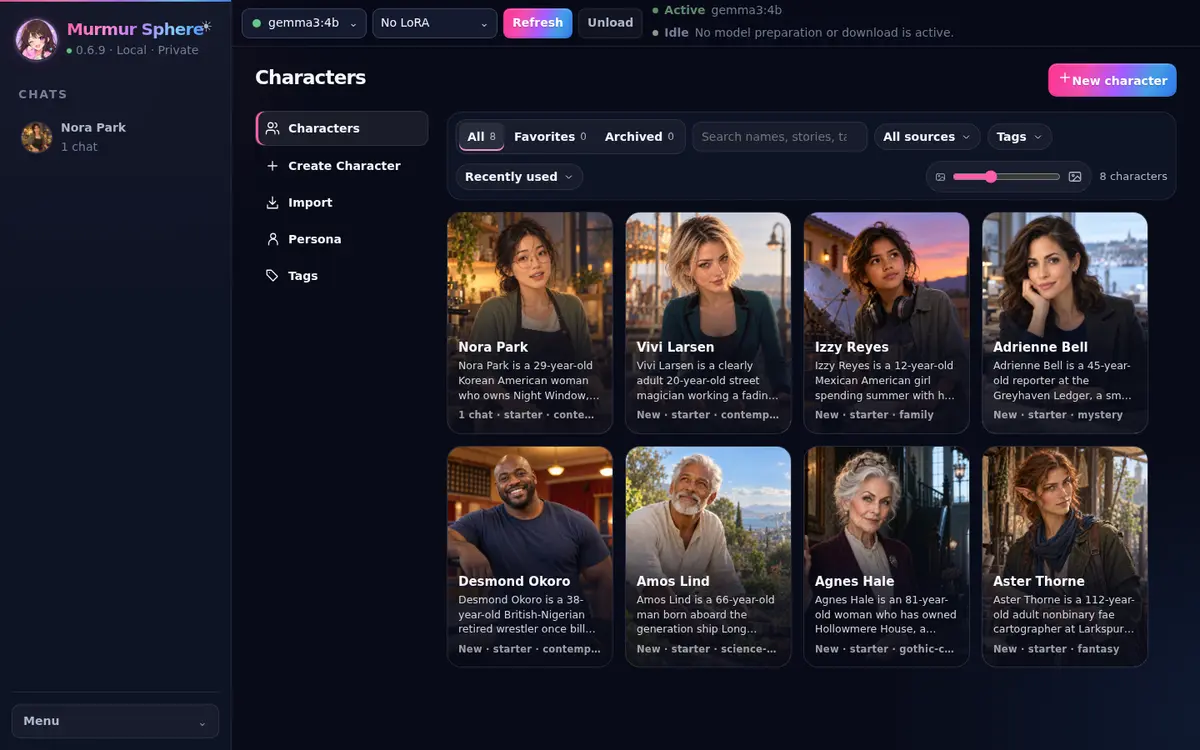
Murmur Sphere 0.6.9 Characters library showing source filters and bundled fictional characters; the Import action opens a separate screen.
The Characters library is the destination for saved cards. This synthetic capture is not the Import screen.0.6.9 app UI with synthetic data. For the current installer, see Download.

Steps

Follow in order.

  1. 1

    In the source app, export the character as a portable PNG character card or JSON card if that app offers one. Keep the original export as a backup.

  2. 2

    Open Murmur Sphere → Characters → Import → Cards & folders. Choose or drop a card file, or choose Add a folder for a collection.

  3. 3

    Read the inspected character details and any warnings. Choose Import character for a supported card; then open it in the Characters library to verify the result.

  4. 4

    For PolyBuzz instead, open the PolyBuzz tab and follow the four Chrome or Edge bridge setup cards. Open a character in the browser, return to the app, select the captured character, and choose Import.

  5. 5

    Load a local model and begin a new conversation with the imported character. Recreate source-app chat settings or history manually if you need them; they are not transferred by a character-card import.

Quick answers

Common questions

Will my SillyTavern chats or settings come across?

No. A supported card brings over character data, not SillyTavern's chat history, settings, extensions, or a whole account.

Can I import PolyBuzz characters directly?

Yes, in the current Windows release through the PolyBuzz tab and its Chrome or Edge browser bridge. You choose which captured characters to save. It is a separate path from importing a PNG or JSON file.

What about PolyBuzz conversations?

Selected PolyBuzz chats can be imported for local LoRA training review. That does not turn them into ordinary Murmur Sphere chat history.

More help

Choose the next useful task.